> ## Documentation Index
> Fetch the complete documentation index at: https://docs.roundtable.ai/llms.txt
> Use this file to discover all available pages before exploring further.
# Qualtrics integration
This guide shows how to add Proof of Human to a Qualtrics survey so that every respondent is tracked throughout their survey.
## Setting up the tracker
The simplest way to load Roundtable across your whole survey is through the **Look and Feel** settings. This injects the tracker on every page so you don't have to add it to individual pages.
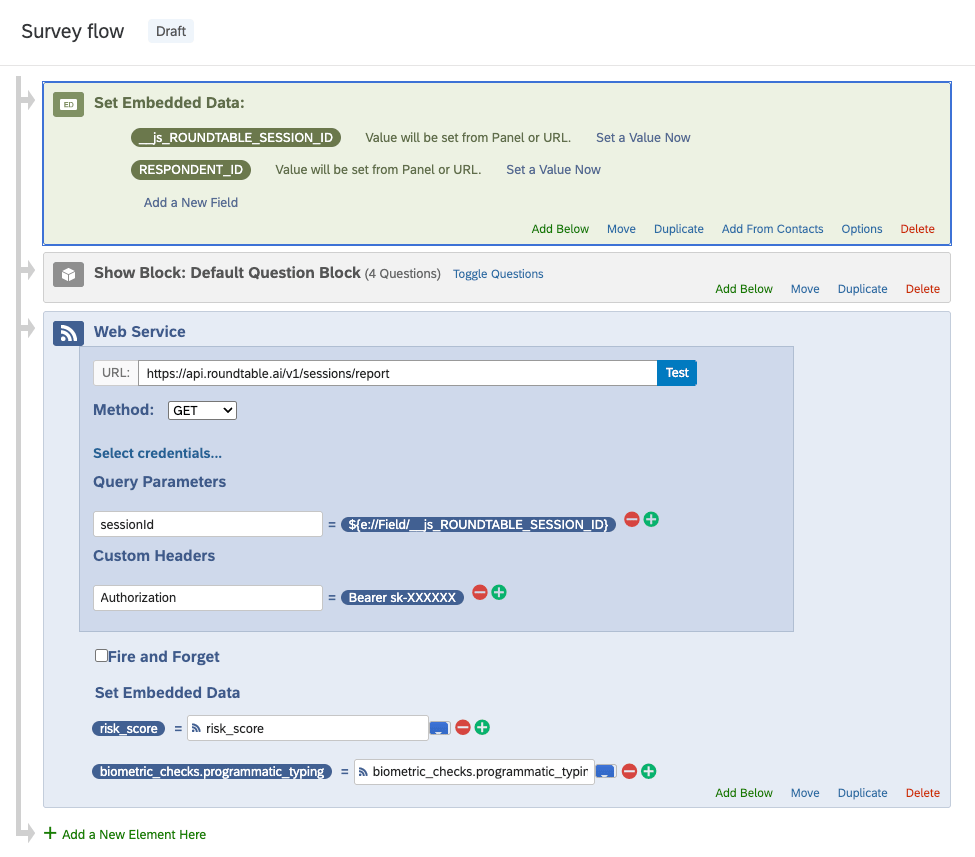
1. In **Survey Flow**, add an **Embedded Data** element at the top of the flow and create a field named `__js_ROUNDTABLE_SESSION_ID` with no value. The `__js_` prefix is required (see the note below).
2. Open your survey and go to **Look and Feel** → **General** → **Header**.
3. Click the source/HTML (`<>`) button to edit the header as raw HTML.
4. Paste the following, replacing `SITE_KEY` with your own site key from the [Integration script](https://accounts.roundtable.ai/account/integration) dashboard page (the public key starts with `pub-`).
```html theme={null}
```
The `data-tags` value (`tag1,tag2`) are placeholders — replace it with your own comma-separated tags, or remove this line if you don't need tags.
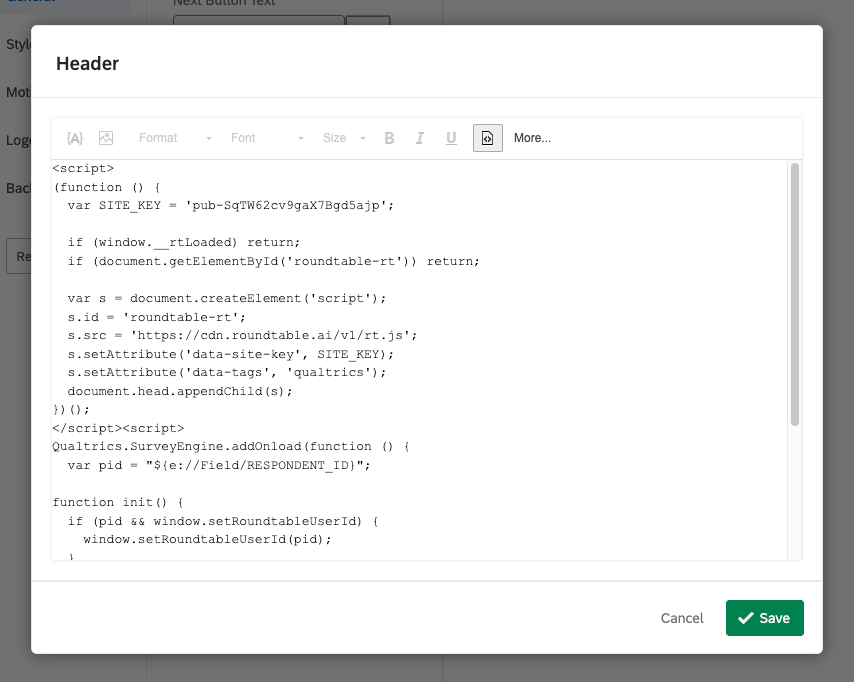 `RESPONDENT_ID` is the embedded data field holding your identifier for the respondent (for example, a panel or participant ID passed in the survey link). Replace it with whichever field holds your identifier (or leave it blank if you don't have a respondent ID).
**The `__js_` prefix is required.** To set embedded data from JavaScript, Qualtrics requires the field declared in **Survey Flow** to be prefixed with `__js_`, while the call to `setJSEmbeddedData` uses the name without the prefix (`"ROUNDTABLE_SESSION_ID"`).
## Retrieving session data
The script above saves the current session ID into the `__js_ROUNDTABLE_SESSION_ID` embedded data field. To pull the risk score and flags for a respondent back into your survey, you can call the session report endpoint from a Qualtrics Web Service task.
### 1. Call the report endpoint with a Web Service
Roundtable exposes the session report through a query-parameter route:
```
GET https://api.roundtable.ai/v1/sessions/report?sessionId=${SESSION_ID}
```
In **Survey Flow**, add a **Web Service** element at the end of the survey and set it as follows:
* **Method:** `GET`
* **URL:** `https://api.roundtable.ai/v1/sessions/report`
* **Query parameter:** `sessionId` = `${e://Field/__js_ROUNDTABLE_SESSION_ID}`
* **Header:** `Authorization` = `Bearer YOUR_SECRET_KEY`
You can get your secret key from the [Secret keys](https://accounts.roundtable.ai/account/api-keys) dashboard page for the `Authorization` header (the secret key starts with `sk-`).
Don't put your secret key in the survey's Look and Feel header or any client-side JavaScript.
### 2. Save the response to embedded data
The API returns the risk score, risk explanation, recommended action, biometric checks, and device checks for the session. To save any of these fields into embedded data, add them to the **Embedded Data** section of the Web Service element. Set the name and value for each field to match the JSON path of the field in the API response. For example:
* **risk\_score** = `risk_score`
* **biometric\_checks.programmatic\_typing** = `biometric_checks.programmatic_typing`
`RESPONDENT_ID` is the embedded data field holding your identifier for the respondent (for example, a panel or participant ID passed in the survey link). Replace it with whichever field holds your identifier (or leave it blank if you don't have a respondent ID).
**The `__js_` prefix is required.** To set embedded data from JavaScript, Qualtrics requires the field declared in **Survey Flow** to be prefixed with `__js_`, while the call to `setJSEmbeddedData` uses the name without the prefix (`"ROUNDTABLE_SESSION_ID"`).
## Retrieving session data
The script above saves the current session ID into the `__js_ROUNDTABLE_SESSION_ID` embedded data field. To pull the risk score and flags for a respondent back into your survey, you can call the session report endpoint from a Qualtrics Web Service task.
### 1. Call the report endpoint with a Web Service
Roundtable exposes the session report through a query-parameter route:
```
GET https://api.roundtable.ai/v1/sessions/report?sessionId=${SESSION_ID}
```
In **Survey Flow**, add a **Web Service** element at the end of the survey and set it as follows:
* **Method:** `GET`
* **URL:** `https://api.roundtable.ai/v1/sessions/report`
* **Query parameter:** `sessionId` = `${e://Field/__js_ROUNDTABLE_SESSION_ID}`
* **Header:** `Authorization` = `Bearer YOUR_SECRET_KEY`
You can get your secret key from the [Secret keys](https://accounts.roundtable.ai/account/api-keys) dashboard page for the `Authorization` header (the secret key starts with `sk-`).
Don't put your secret key in the survey's Look and Feel header or any client-side JavaScript.
### 2. Save the response to embedded data
The API returns the risk score, risk explanation, recommended action, biometric checks, and device checks for the session. To save any of these fields into embedded data, add them to the **Embedded Data** section of the Web Service element. Set the name and value for each field to match the JSON path of the field in the API response. For example:
* **risk\_score** = `risk_score`
* **biometric\_checks.programmatic\_typing** = `biometric_checks.programmatic_typing`
 For the full response shape and all available fields, see the [API Reference](api-reference/session-data).